
Requests Details
Overview
The Service Request Details page provides a comprehensive view of individual service requests.
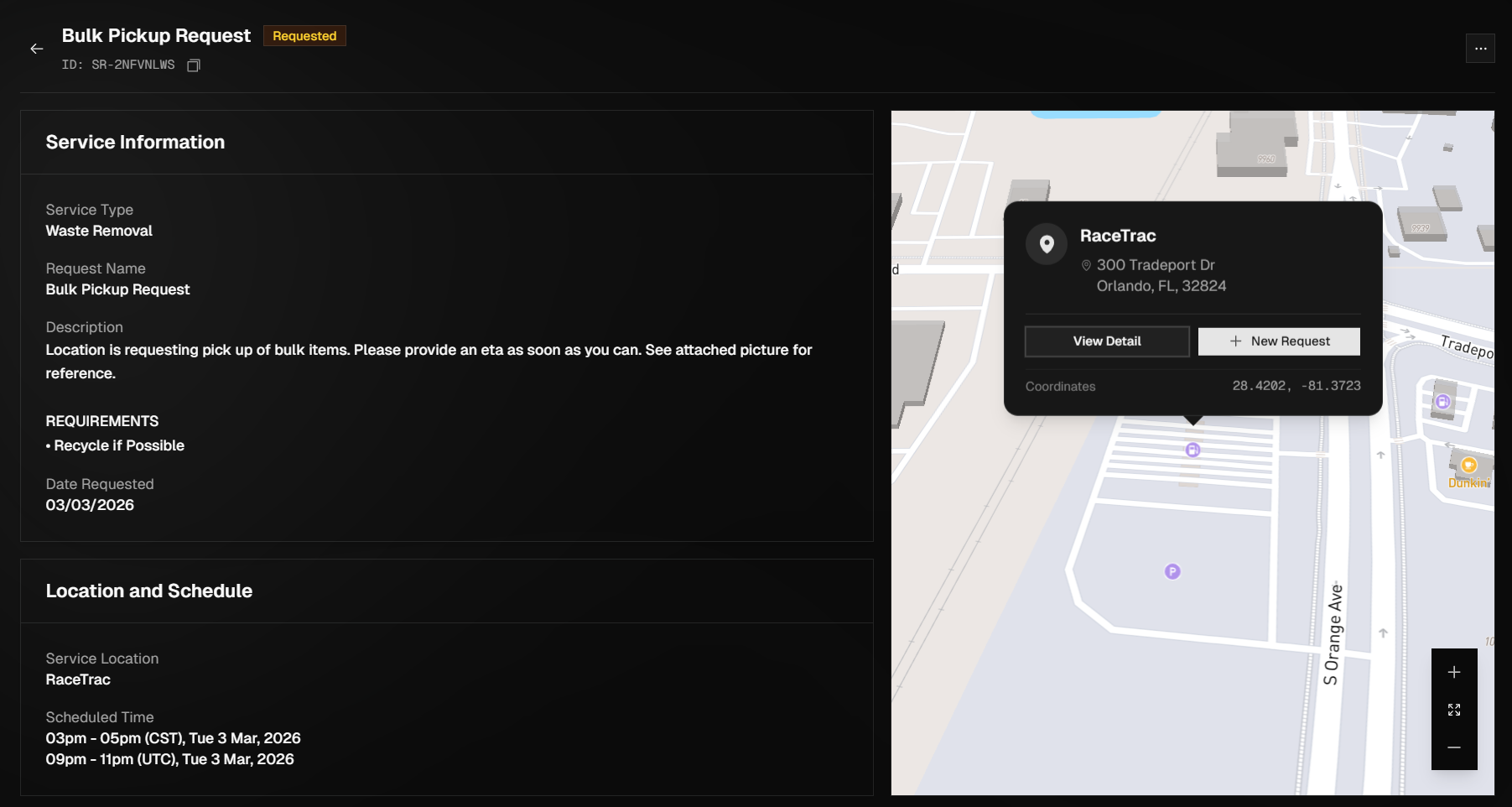
This page is intended to give customers full visibility into the status, scope, and progress of a specific request from creation through completion. The Service Request Details page is designed to promote transparency and reduce the need for follow-up by presenting all relevant request information in one centralized location. Customers should refer to this page whenever they need to verify service details, monitor progress, or confirm completion of a request.
Accessing an Existing Service Request
To access a service request, click on the service request card in the list or click the ellipsis (three dots) to the far right of the request and then click View.
You can also access a request by using the master search bar in the navigation menu.
Service Request Statuses & Definitions
Each request moves through a defined set of statuses that reflect its progress from creation to completion. Understanding these statuses will ensure you can accurately track progress and know when action is required.
Status | Definition |
|---|---|
Requested | Request has been submitted and will be reviewed. |
Confirmed | The request has been reviewed and a service provider has been assigned. |
In Progress | Service provider is onsite completing the request. |
Complete | Request has been completed and is awaiting audit and invoicing. |
Payment Due | Request has been invoiced and is ready to be paid. |
Invoice Disputed | If there is an issue with the invoice for any reason it will be put into this status. |
Payment Finalized | Payment was successful. |
Cancelled | This request was cancelled, either at your request or by our team. |
Editing Service Requests
To update or edit an existing service request, first access the service request following the steps above. Click the ellipsis at the top right of the request and click Edit. In the Update Request form that is displayed, update or modify any of the information needed and click Update Request.
If a request has already been assigned to one of our providers you will not be able to edit it. You will need to reach out via support in the portal.
Cancelling Service Requests
To cancel a service request, begin by accessing the request you wish to cancel. Click the ellipsis at the top right of the request and click Cancel Request. You will need to provide a reason for the cancellation, and there is also an optional field to provide additional details if necessary. Finally, click Cancel Request.
A confirmation message will appear at the top right of the screen stating the request has been cancelled successfully.