
Requests View
Overview
The Requests module serves as the central hub for all of your service requests.
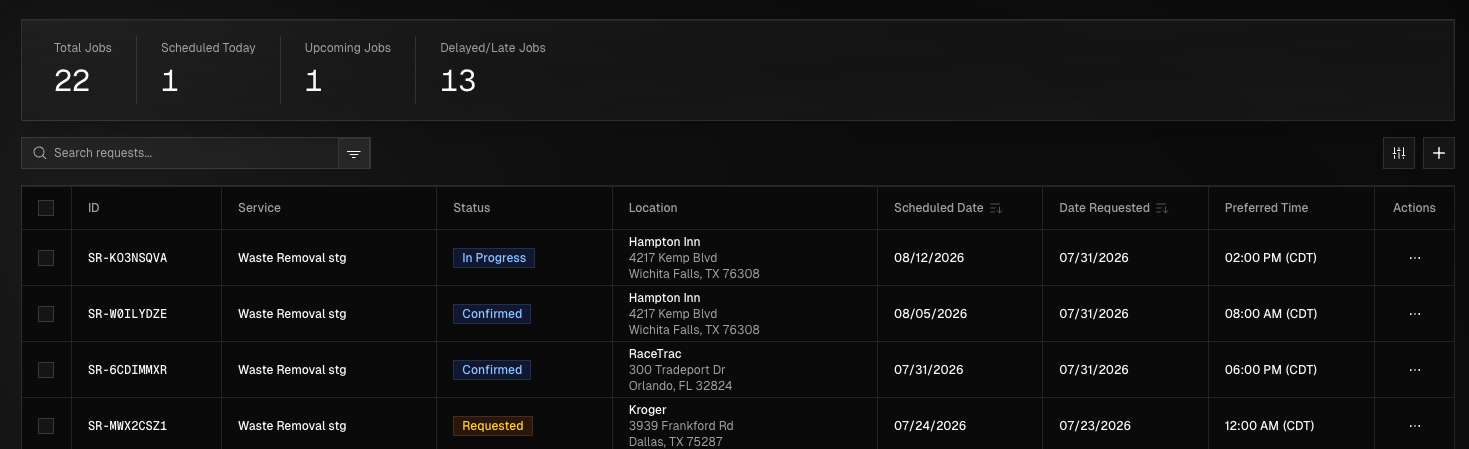
This module provides clear visibility into your active, upcoming, and completed service requests, allowing you to easily track progress and stay informed at every stage. Within the Requests module, customers can view key details related to each request, including current status, scheduled service dates, and relevant updates. It also enables you to submit new service requests directly through the platform, ensuring requests are accurately captured and efficiently processed.
Accessing the Requests View
You can access the Requests view either by hovering over the navigation bar on the left side of the screen and click Requests or press Ctrl + K and click View Requests in the menu that is displayed.
Using the Search Bar
You can search for requests from the search bar on this page by the service Request ID (i.e., SR-XXXXXXXX) or service type to easily locate specific requests.
Filtering Service Requests
To filter service requests click the three lines that progressively get smaller just to the right of the search bar, hover over the filter type you wish to use, make a selection. Filtering options include:
Scheduled Date - Select the date that you entered for the service to be scheduled when creating the request.
Date Requested - Select the date that you created the service request.
Location - Choose the location of the service request.
Service Type - Choose the service type.
Status - Choose the status of the request.
Creating Service Requests
When creating a service request, you will be required to provide the following information:
Service Address
Point of Contact (POC) for the location.
Billing Profile - Contact information for who will handle billing for the location.
Preferred Date & Time.
Service Type you are requesting.
Full scope of work to be done.
To create a new service request, click the "+" located at the top right of the screen and the Create New Request side window will be displayed. You can also create a new request from the Overview page from the Quick Actions menu.
Create a New Service Request
Begin by selecting the category of service you need (e.g., Bulk Waste, Commercial Cleaning, etc.), then select the service type from the list that populates, and click next. Select the service location for the request or create a new location, if needed, and click next. Next, review the billing profile assigned to the location and update it if necessary and review the pricing options for the service type selected, then click Next.
Next, choose the job type, either a One-Off service scheduled for a single date or a Recurring service set to repeat at a defined frequency. Select the preferred service date and time, choosing either a two-hour service window or an exact time, then proceed to the next step.
Assign a unique name to the request and enter a PO number, if applicable. Provide a clear description of the work and include any special requirements needed to complete the service correctly. Assign a point of contact or create a new one if necessary, by clicking Add New Contact in the drop-down. Attach any relevant pre-service photos to provide additional context, then proceed to the final step.
Review all the information you have entered and correct any mistakes made. by utilizing the Back button at the bottom of the form. After reviewing click Save.
DONE! Your service request will be sent to us for review and you can now track and manage the request.