
Users
Overview
The Users page allows customers to view and manage users who have access to their account within the client portal.
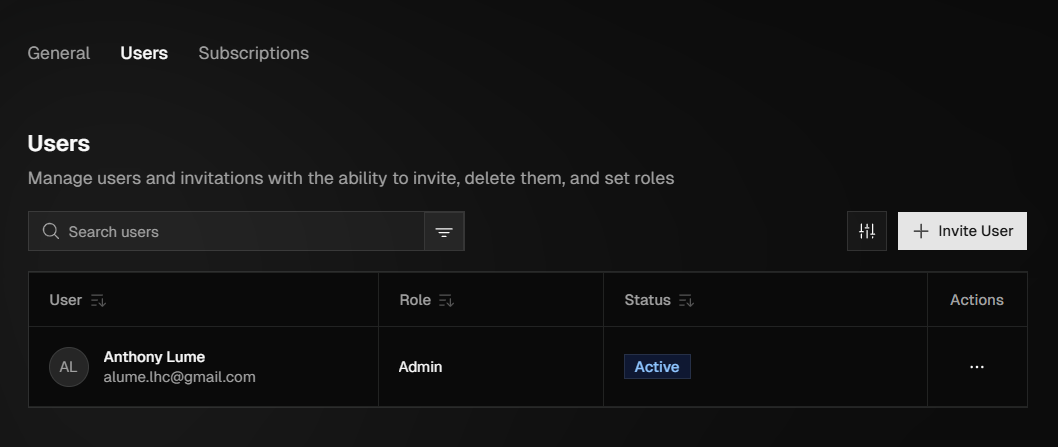
This page is designed to help customers control user access, assign roles, and maintain accurate records of active users associated with their organization. The Users page serves as the primary reference point for managing account access, ensuring that the correct users have the appropriate level of access to the platform while maintaining account security and oversight.
To access the Users page, hover over the navigation bar on the left, click Settings, then click Users at the top or click the drop down next to Settings in the navigation bar and then click Users.
Adding New Users
To add a new user, click + Invite User in the top right corner, enter their first and last name, provide their email address, and assign them a role.
If the new user is assigned the Admin role, then click Send Invite. The user will receive an email to complete account setup and gain access to the portal.
If the new user is assigned the Location Manager role, a list of all current locations will populate. Choose which locations they should have access to, then click Complete.
Editing Users
To edit an existing user, click the ellipsis (three dots) next to the user you want to update, select Edit, make the necessary changes—such as updating their name or phone number—and then click Save Changes.
A user’s email address cannot be changed once the account is created because it is used as the unique identifier for login and account security. If a different email address is needed, a new user must be invited using the updated email.
Roles & Permissions
When adding a new user, you must assign a role that determines their level of access. Admins have full access to the portal and can view and modify all areas. Location Managers have limited permissions, allowing them to view the portal, manage service locations, and view, edit, or delete ZeroPoint facility shipments.
Searching & Filtering Users
You can search for users by first or last name or by email address. Additionally, users can be filtered using the All drop-down at the top right of the list, which lets you view all users or narrow results by status, including Pending, Invited, Active, or Invite Expired.