
Invoices
Overview
The Invoices module provides customers with a centralized view of all invoices associated with their account.
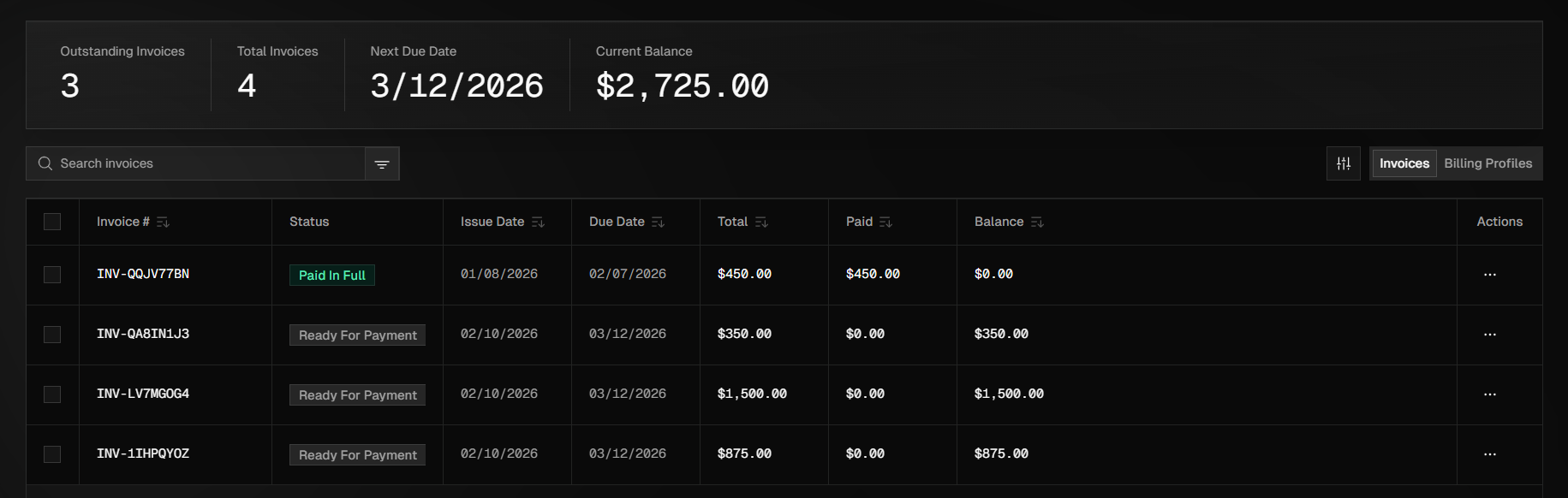
This module is designed to help customers review invoice details, track payment status, and manage outstanding balances in one convenient location. It serves as the primary reference point for monitoring billing activity, managing payments, and maintaining visibility into financial obligations.
Invoices Dashboard
The table displays a list of invoices associated with your account, including the invoice number, issue date, due date, outstanding balance, and current status. This information allows customers to quickly review invoice details and track payment status. You can also pay invoices from this view if you wish.
Accessing the Invoices View
You can access the Invoices view either by hovering over the navigation bar on the left side of the screen and click Invoices or press Ctrl + K and click View Locations in the menu that is displayed.
Invoice Statistics
The top of the module displays key invoice statistics to help you quickly understand your billing status, including the number of outstanding invoices (invoiced but unpaid, regardless of due date), the total number of invoices issued, the next upcoming due date, and the current balance, which represents the total amount due across all outstanding invoices.
Invoice Statuses & Definitions
Each invoice moves through a defined set of statuses that reflect its progress from generating to paid in full.
Status | Definition |
|---|---|
Ready for Payment | Invoice has been created, reviewed, and finalized, and is ready for your review and payment. |
Requires Conversion | Invoice will be put into this status if you are being invoiced in a currency other than USD. |
Open | The invoice has been generated after passing audit and the invoice has not been finalized yet. |
In Dispute | Something on the invoice is incorrect and needs fixed before paying for services. |
Dispute Resolved | After fixing the invoice it will enter into this status indicating that it needs to be re-finalized. |
Paid in Full | Invoice is paid and has a $0 balance. |
Rejected | Issue with the invoice submitted to NetSuite and needs revision. |
Overdue | Payment has not been made and the due date of the invoice has passed. |
Searching & Filtering Invoices
You can only search invoices by the invoice ID generated when we create the invoice. (i.e., INV-XXXXXXXX)
Filtering options are available to help you quickly locate specific invoices. You can filter invoices by Issued Date or Due Date using calendar selections with preset or custom date ranges, or by Status by selecting the filter icon next to the search bar and choosing the desired status.