
Quotes View
Overview
Quotes provide customers with a centralized view of all service quotes submitted through the platform.
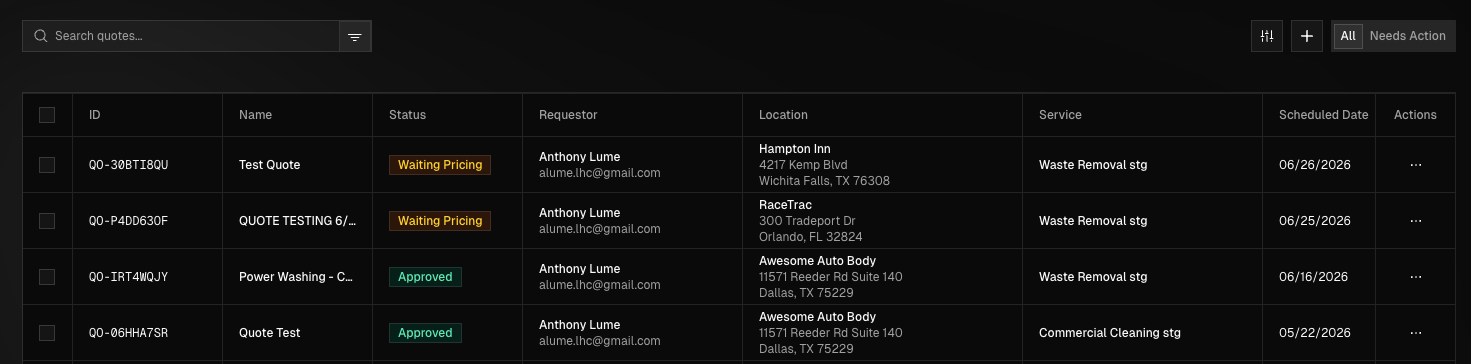
This page is designed to help customers review, track, and manage quotes throughout the approval process before services are scheduled or requests are created. Customers may create new quotes directly from this page and access individual quote details to review scope, pricing, and next steps. Quote statuses provide clear visibility into where each quote is within the approval lifecycle.
Quote Statuses & Definitions
Quotes progress through a set of predefined statuses that reflect their current stage in the lifecycle:
Status | Definition |
|---|---|
Waiting For Pricing | Quote has been submitted and we are looking into pricing options. |
Waiting For Approval | Pricing has been submitted for the quote for you to review. |
Approved | Quote has been approved and converted into a service request. |
Rejected | Pricing was rejected and the quote has been cancelled. Only reject a quote if you do not wish to use our services or you will have to create a new quote request. |
Accessing the Quotes View
You can access the Quotes view either by hovering over the navigation bar on the left side of the screen and click Quotes or press Ctrl + K and click View Quotes in the menu that is displayed.
The Quotes tab includes two main views to help you manage quotes efficiently. The All view displays a list of all quotes, while the Needs Action view highlights quotes that require attention, such as those waiting for pricing or approval.
Searching & Filtering Quotes
Searching Quotes - You can search the list of quotes by Quote ID (QO-XXXXXXXX) or Quote Name.
Filtering Quotes - To filter quotes, select the filter (funnel) icon next to the search bar at the top of the screen. Quotes can be filtered by Date, Location, Service Type, or Status.
Creating a Quote Request
To create a new quote, navigate to the Quotes section using the navigation bar on the left side of the screen or by pressing Ctrl + K and selecting Quotes from the menu. Select the "+" symbol in the top-right corner to open the Create Quote form. Complete the form in the same way you would submit a service request. The only difference is that you will be prompted to enter a Not-To-Exceed (NTE) amount on the first step, which is optional but provides a helpful reference when pricing options are being prepared.
Be sure to include any site photos that you can. This will ensure more accurate rates are given.