
Shipments View
Overview
The Shipments module provides customers with a centralized view of all shipments associated with their ZeroPoint activity.
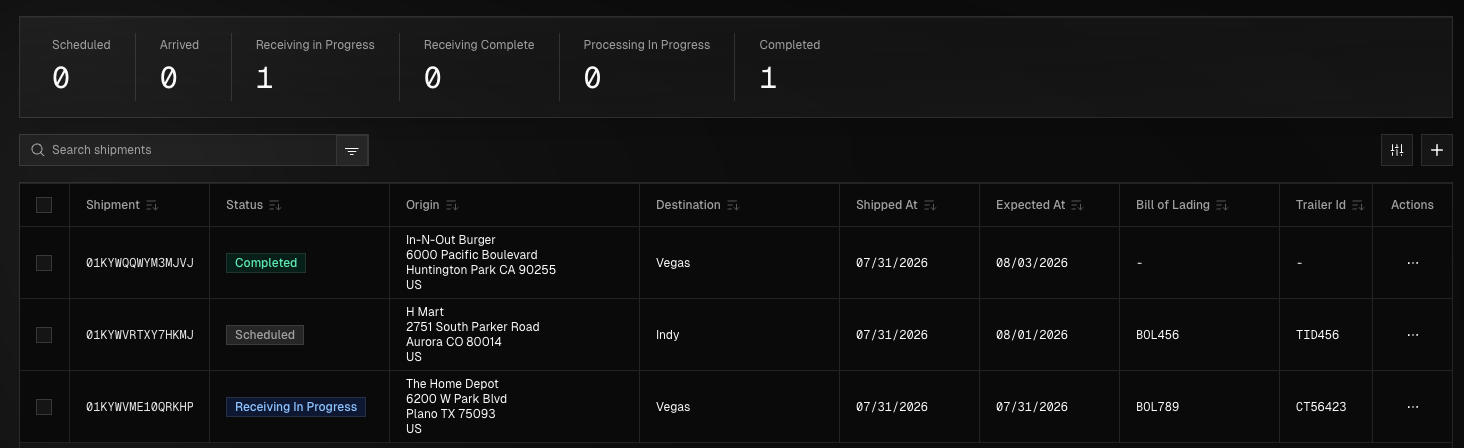
This page is designed to help customers track shipment progress, review shipment details, and monitor the movement of materials from origin to destination. This page serves as the primary reference point for tracking shipment activity, ensuring visibility into logistics operations and supporting accurate reporting and billing.
Accessing the Shipments View
You can access the Shipments view either by hovering over the navigation bar on the left side of the screen and click Shipments or press Ctrl + K and click View Shipments in the menu that is displayed.
The top of this page displays all shipments associated with your account, grouped by status, giving you a quick snapshot of their progress and highlighting any items that may require action.
Shipment Statuses
Each shipment moves through a set of statuses as it moves through its lifecycle.
Status | Definition |
|---|---|
Scheduled | Shipment has been created and a delivery date has been scheduled. |
Arrived | Shipment has arrived at our ZPF facility. |
Receiving in Progress | We have begun to unload the shipment. |
Receiving Complete | Unloading of the shipment is complete. |
Processing in Progress | We have begun sorting your shipment. |
Completed | Sorting is complete and the invoice will be issued shortly. |
This section displays a complete list of your shipments along with key details, including Shipment ID, origin, destination, status, ship dates, BOL number, and trailer ID.
Search & Filters
Searching Shipments - A search bar above the shipment list on the left allows you to quickly find shipments by Shipment ID, Bill of Lading (BOL) number, or Trailer ID.
Filtering Shipments - You can use the available filters to narrow the shipment list by Shipped Date, Expected Date, Origin, Destination, or Status, making it easier to find specific shipments based on timing, location, or current progress.
Creating New Shipments
Begin by clicking the "+" button at the top right of this page. Select a shipment type, origin location, expected arrival date, and nearest destination facility. You can include an external ID if you have one for your own tracking purposes as well as any additional notes you deem necessary for us to know about this shipment. Click Next, to continue.
Next, select whether you will handle the logistics or if you want us to handle them. If logistics are to be handled internally, you will need to provide a Bill of Lading number to proceed. Click Next, to continue.
Review the shipment details and click Submit Shipment to send it to us for review.